
☰ Chapters
5. Auto-creating Keys
5.1 Prerequisites
- Extension installed and connected (chapter 4)
- Chrome is logged in to the target platform (auto-create reuses that session)
5.2 Workflow
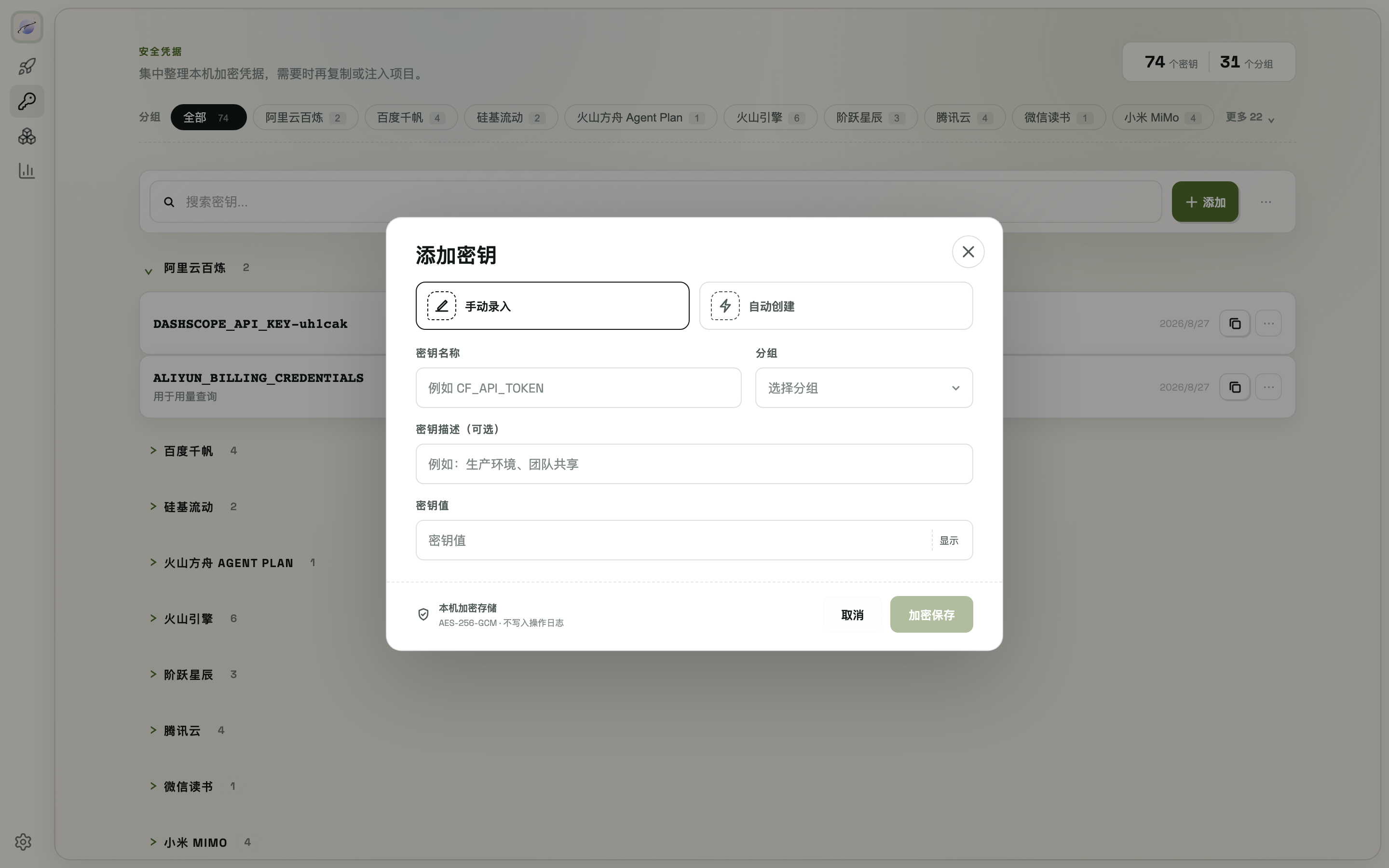
- Console → Vault → Auto-create
- Pick a platform (31 supported, see table)
- ModelSwap opens a browser window, navigates to the platform's API key page, fills in the name, clicks create, and copies the new key
- The key lands in the local encrypted vault (AES-256-GCM); it is never written in plaintext
5.3 Supported platforms
| Group | Platforms |
|---|---|
| International | OpenAI, Anthropic, xAI (Grok), xAI Management Key (usage), Mistral, OpenRouter, OpenRouter Management Key (usage) |
| Zhipu | Zhipu AI (CN), Z.AI (international) |
| Volcengine | Volcengine (standard API key), Volcengine Agent Plan |
| Tencent Cloud | Tencent Cloud, Tencent Cloud Token Plan |
| MiniMax | MiniMax (CN/international), MiniMax Token Plan (CN/international) |
| Moonshot | Moonshot, Kimi (CN), Kimi Coding Plan |
| Alibaba Cloud | Aliyun Bailian, Bailian Coding Plan, Bailian Token Plan |
| Baidu | Baidu Qianfan, Baidu Qianfan Token Plan |
| Others | DeepSeek, SiliconFlow, Xiaomi MiMo, Xiaomi MiMo Token Plan, StepFun, OpenCode Go |
5.4 Special cases
- Volcengine: the platform may pop up a security or SMS verification mid-flow — complete it manually and the extension takes over again (semi-automatic)
- Z.AI / Baidu Qianfan Token Plan: the key is read via the "copy" control on the list page; if the control returns a masked value, ModelSwap explicitly stops and asks you to copy manually — better to store nothing than to store a mask
- Anthropic: keep the browser in the foreground after creation; the extension reads the key via the "copy" button